AltunakarDeskRemote access software from Altunakar Bilgisayar
Connect to your computer from anywhere.
Access your home computer from work and help family and friends without having to be there. A connection is established only with the ID and password shared by the other side, or with their on-screen approval; all connections are end-to-end encrypted.
AltunakarDesk runs on Windows and Mac computers. Please open this page on the computer where you want to install the program: altunakar.net/uzak-destek
A Linux version is not yet available.
You can use AltunakarDesk on a Windows or Mac computer.
Open About This Mac from the menu in the top-left corner. If it shows Chip: Apple M…, download the Apple silicon version; if it shows Processor: … Intel …, download the Intel version.
Consent-based accessYou decide who gets access
End-to-end encryptionAltunakar's own servers
Start for freeFor Windows and Mac
24/7 technical supportRound-the-clock support line
For everyone
One program, three uses
Whether you connect to your own computer, manage your business's computers or get support from Altunakar, you use the same program.
Your download has started. Once the file has downloaded, follow the steps below in order.
Steps for the first launch
Windows and macOS display a security warning the first time you open an app that does not carry a Microsoft or Apple developer signature. This is expected, and you only need to confirm the warning once. We recommend downloading the program from this website only.
Windows
View the steps with screenshots4 steps
Run the downloaded file
When the download is complete, run AltunakarDesk-Windows.exe from your browser's download list or from the Downloads folder.
If your browser warns that the file “isn't commonly downloaded”, use the Keep option in the ⋯ menu next to the file.
AltunakarDesk-Windows.exeApplication · 26.5 MB
In the Downloads folder, the file appears with this icon.
Select “More info”
The warning “Windows protected your PC” appears. Select the More info link below the text.
Windows protected your PC
Microsoft Defender SmartScreen prevented an unrecognized app from starting. Running this app might put your PC at risk.
More infoDon't run
Simplified drawing of the Windows warning dialog.
Select “Run anyway”
The dialog shows the name of the app and its publisher. Select Run anyway to start AltunakarDesk.
If Windows asks “Do you want to allow this app to make changes to your device?”, select Yes.
Windows protected your PC
Microsoft Defender SmartScreen prevented an unrecognized app from starting. Running this app might put your PC at risk.
App:
AltunakarDesk-Windows.exe
Publisher:
Unknown publisher
Run anywayDon't run
Simplified drawing of the Windows warning dialog.
Share your ID and password with the person who will connect
When AltunakarDesk opens, This computer's ID and the One-time password are shown at the top. Give this information to the person who will connect to your computer; if you are getting support from Altunakar, you can give it to our technician by phone or via WhatsApp.
Once the connection is established, a window appears in the corner of your screen showing who is connected and which permissions have been granted. For connection requests made without a password, you need to select Accept in this window. The connection ends when you close the window.
For one-off use you do not need to press the Install button in the program. If you want your computer to be accessible when nobody is in front of it, install the program permanently with the Install button.
Sample values; the ID and password on your screen will differ.
Mac
View the steps with screenshots5 steps
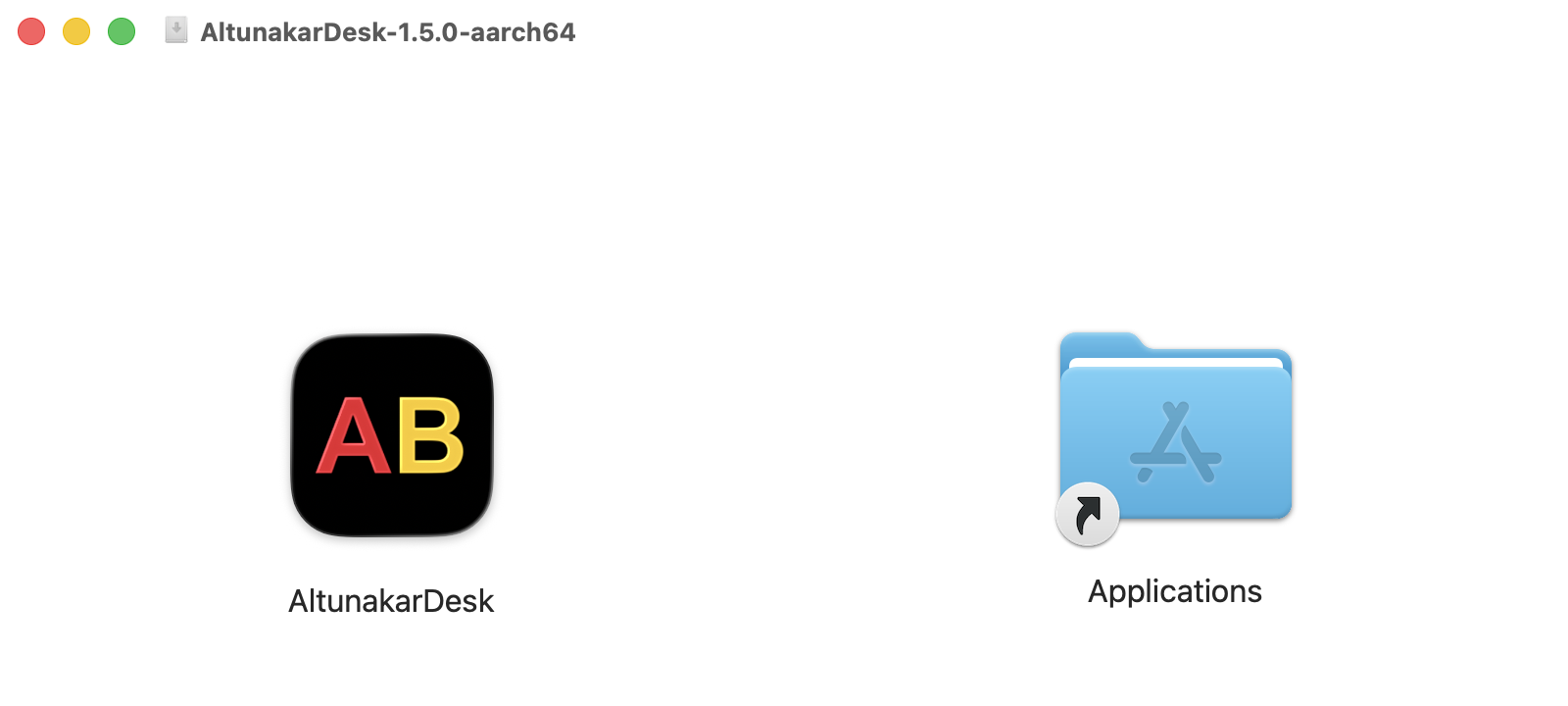
Drag the app to the Applications folder
Open the downloaded AltunakarDesk-Mac file (.dmg). In the window that opens, drag the AltunakarDesk icon on the left onto the Applications folder on the right.
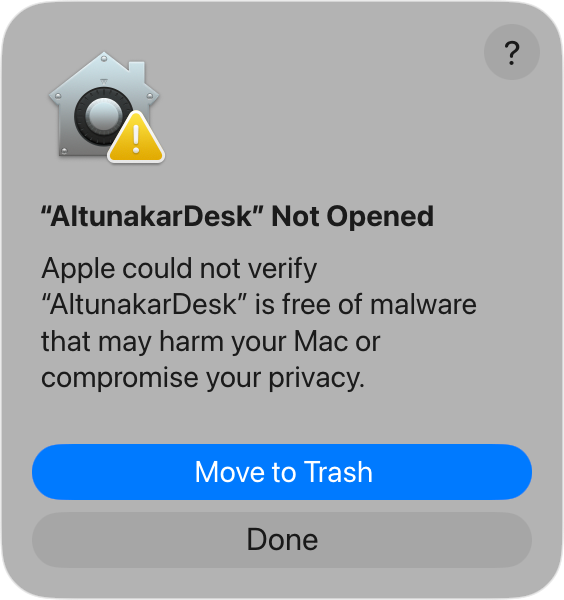
Select “Done” in the warning
When you open AltunakarDesk from the Applications folder, the warning “AltunakarDesk” Not Opened appears. Select Done; do not use the Move to Trash button.
If you see the message “You can't open this application because it is not supported on this Mac”, download the other Mac version. You can find out your processor type under “How do I find out which processor my Mac has?” below the download button.
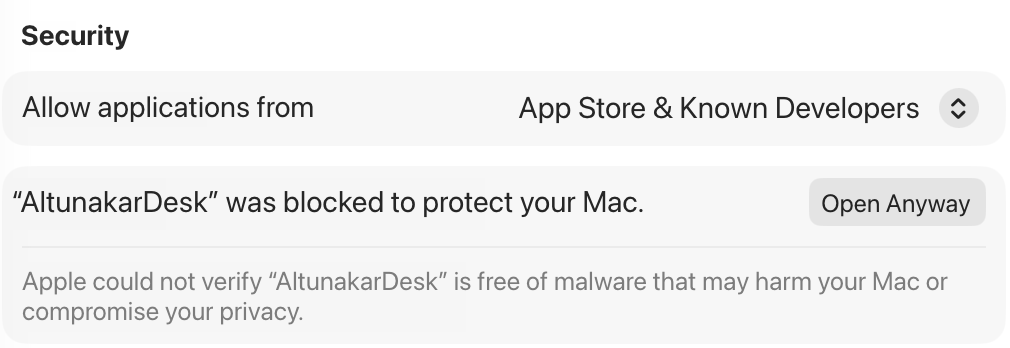
Confirm in Privacy & Security
From the menu in the top-left corner, open System Settings › Privacy & Security and scroll down. Next to “AltunakarDesk” was blocked to protect your Mac., select Open Anyway.
The system confirms this step once more by asking for your Mac password or Touch ID; select Open Anyway again. This is only required on first launch.
On older macOS versions, go to System Preferences › Security & Privacy › General.
System Settings › Privacy & Security
Grant screen recording and accessibility permissions
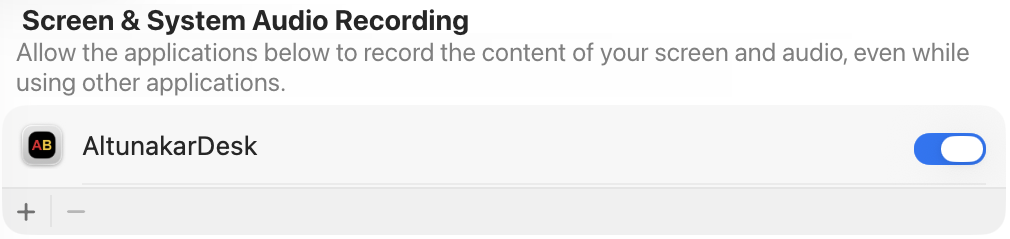
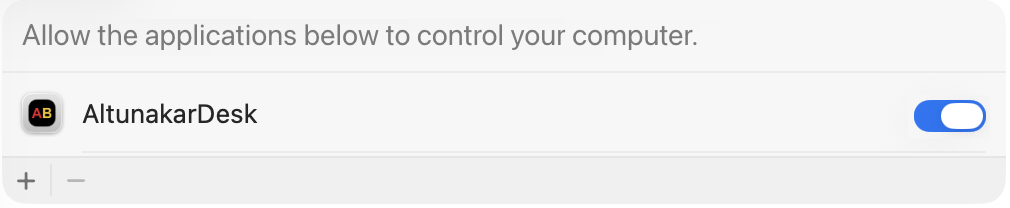
Two permissions are required so that your screen can be viewed and the mouse and keyboard can be controlled during remote support. Select Configure in the yellow banner in the program and turn on the switch next to AltunakarDesk in the settings that open:
Screen & System Audio Recording (Screen Recording on older versions)
Accessibility
If the system suggests Quit & Reopen, confirm it; the program restarts automatically.
AltunakarDesk window
Accessibility
System Settings › Privacy & Security
Share your ID and password with the person who will connect
When AltunakarDesk opens, This computer's ID and the One-time password are shown at the top. Give this information to the person who will connect to your computer; if you are getting support from Altunakar, you can give it to our technician by phone or via WhatsApp.
Once the connection is established, a window appears in the corner of your screen showing who is connected and which permissions have been granted. For connection requests made without a password, you need to select Accept in this window. The connection ends when you close the window.
Sample values; the ID and password on your screen will differ.
All installation files, file verification (SHA-256) and system requirements are on the Download page.
Get support from Altunakar
Remote technical support
Altunakar's corporate IT expertise, at your service without us having to come to you. Our specialist team reviews your request and the fee is stated clearly before we connect. All work is carried out only with your approval and under your supervision.
1
Send us your request
Fill in the form or call our support line. Our technician calls you back and listens to your issue.
2
Get the price
The service fee is stated clearly by phone before we connect. You pay by card through the secure link we send you; your card details never reach Altunakar.
3
We connect with your approval
Open the program and give our technician the ID shown on your screen. Once you accept the connection request, the problem is fixed while you watch; the connection ends the moment you close the window. The security prompt you may see on first launch is explained in the setup guide.
Remote support hours: Monday–Friday 09:00–18:00, Saturday 10:00–16:00 (Turkey time). 24/7 for businesses with a maintenance agreement.
Our service areas
Operating systems and software
Windows and macOS configuration; update, compatibility and stability issues
Business email and work applications
Microsoft 365, Google Workspace and business email accounts
Information security
Malware detection and removal, security configuration
Performance and system health
Analysis of slowdowns, freezes and error sources
Networks and peripherals
Network shares, VPN and remote-work connections, printer and scanner integration
Business software
Installation and deployment of accounting, ERP and industry software
Data and backup
Data migration, backup planning, cloud sync
Personal use
Reach your own computer and your loved ones from anywhere
Open a file on your home computer from work, or fix a problem on your mother's computer without going over. With a free personal account, your computers stay in your address book, and the same list appears on every device you sign in on.
Access to your own computerConnect to your computer at home or at work with a permanent password, even when nobody is in front of it.
Remote help for family and friendsYour relative opens the program and gives you the ID and password on their screen; you connect, see their screen and solve the problem together.
Address book and groupsOrganise your computers in groups such as “Home” or “Office”; see which ones are online in the list and connect with one click.
In free use, connections are limited to short sessions. To use it without a time limit, take a look at the Solo personal plan.
Businesses
Remote support and management for your business
Team and Enterprise plans for teams that support their employees and customers remotely; maintenance-contract remote support for organisations that want to leave the upkeep of their computers entirely to Altunakar.
Multiple users
Add your users by e-mail address on the My account page; each user opens one connection at a time. The people you support pay nothing.
Mass deployment
Install on many computers at once with the silent installation package (.msi); with unattended access, carry out maintenance and updates outside working hours.
Altunakar's managed service
Our technical team connects to the computers of organisations with a maintenance contract; the connecting technician is shown as verified on screen and every connection is logged.
Downloading the program, accepting incoming connections to your computer and creating a personal account are free. In free use, a connection you open to another computer lasts 5 minutes; you can reconnect after a short wait. To use it without a time limit, you can get the Solo personal plan.
How do I connect to my mother's computer?
Ask your mother to download AltunakarDesk from this website and open it, then to give you the 9-digit ID and the one-time password shown on her screen. In your own program, type the ID into the Connect to another computer field, select Connect and enter the password. If no password is shared, the connection request appears on her screen for approval; she simply selects Accept.
Is AltunakarDesk secure?
Connections are end-to-end encrypted and established via servers owned by Altunakar. Your computer can only be accessed with the ID and password you share or with your on-screen approval; during the connection you see who is connected and which permissions are granted, and you can end the connection at any time by closing the window. Do not share your ID and password with people you do not know.
Do I need an account to connect to my own computers?
No. You can always connect using the ID and password. When you create a free personal account, your computers are saved in your address book and the same list appears on every device you sign in on. The account is created with an email address and password; no additional authenticator app is required.
Why do Windows and macOS show a security warning?
Both operating systems stop apps that do not carry a developer signature registered with Microsoft or Apple when they are first opened. This warning does not mean that the program is harmful: if you downloaded AltunakarDesk from this website, you can open it by following the steps in the installation guide. You can verify the integrity of the file using the SHA-256 value on the Download page.
How do I end the connection?
Select Disconnect in the window that remains open on your screen during the connection, or close the window.
When can an Altunakar technician connect to my computer?
Only when you share your ID and one-time password, or when you select Accept in the window on your screen. Unattended access without confirmation (for corporate computers under a maintenance agreement) is set up only at your request.
Do I need to uninstall the program after using it?
No. The program can be opened again next time without downloading it again. If you wish to remove it, use Settings › Apps on Windows, or move it from the Applications folder to the Bin on a Mac.

 AltunakarDeskRemote access software from Altunakar Bilgisayar




 Accessibility